Showing posts with label windows 7 tutorial. Show all posts

Nov 1, 2010

Most Requested Windows 7 Tutorial: How to Uninstall Internet Explorer 8 for Good and Forever.

Internet Explorer known to be a slow loading browser and that’s a negative impression to MS. Slow loading time and sometimes freezes the browser causes not only from IE itself, I myself also experienced this kind of problem in Firefox and Chrome. For some reason the main suspect is the processor working during that time and also not only the hardware but a lot of factor affects this browser problem. But there would be particular reasons for this behavior which we actually didn’t know now. Well lets that’s another topic to discuss. On the contrary, there are still users that are really enjoying the capability and versatility of Internet Explorer 8. Yes, it does take time to load your homepage, but, once loaded, it is good enough forworking online photo and video editing and heavy online gaming.


Unfortunately, there are some user prefer to use other browser which somehow more advantageous and much flexible in many ways. But hating or not using IE is not enough for this user to forget all the worst performance of Internet Explorer 8, there are some user like to remove the entire application for good. Well that’s the fact MS. This quick guide below will teach you to completely uninstall Internet Explorer 8 for good and even forever. LOL. As a web publisher I would not recommend t uninstalling Internet explorer because sometimes website sometimes need to test for browser compatibility. But for those users who simply cannot stand Internet Explorer the solution is here.

1. Control Panel

2. Programs

3. Programs and Features

4. Turn Windows features as seen on the image.

5. Uncheck Internet Explorer 8 and click OK.

6. After a couple of restarts Internet Explorer should be gone for good.


I hope you’ll miss Internet Explorer 8 somehow.

Oct 31, 2010

Free Mac OS X Snow Leopard Wallpaper for Windows 7

While Enjoying the power of Windows 7 OS, we can also enjoy the pre-loaded wallpaper from Mac OS X Snow Leopard. Below you can find the download link for Mac OSX Snow Leopard Wallpaper.


Free Download Mac OSX Snow Leopard Wallpaper.

How to Install Downloaded Wallpaper on Windows 7

Text Twist 2 Jewel CaseAfter downloading Windows 7 wallpaper zip file make sure you extract the file using ZIP/RAR extractor.  Just Follow the simple steps below;

1. On Windows 7 Desktop, right click any space and find Personalize.
2. On Personalize Window, click Desktop Background located on the bottom left part of the Window.
3. Locate the file you download on the Browse Tab.
4. After saving changes you'll direct to the Personalize main window and choose the wallpaper theme you want.


Enjoy and Keep coming back to my blog. 


Articles you may like....

Sleep Timer Adjustment in Windows 7

A lot of my Subscriber keep emailing me about Windows 7 tutorial so here's one of those tips( let's say a very newbie tips)
How to adjust Sleep timer in Windows 7. Just follow the step below.

Oct 26, 2010

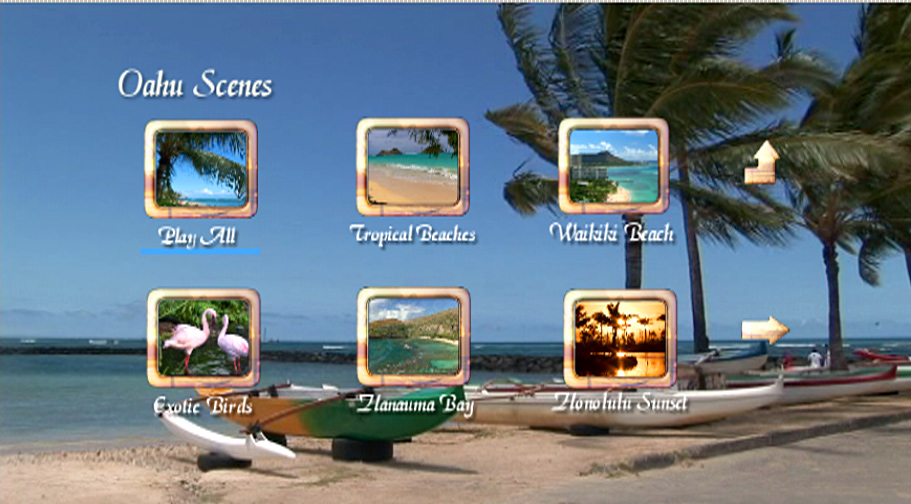
The Easiest Way to Create and Burn DVD movie with MENU selection in Windows 7®!


The good thing about DVD technology compare to VCD and VHS is that it allows user to browse a movie scene by scene from a Menu list. For example you want to skip a particular scene because you might think the movie is a little bit boring and you want to be on the climax, you can just go to the root menu and find the scene you want. Also, DVD movie now, comes with special feature like behind the scene and the making of the movie clips aside the movie itself. All those items can find on the root menu list of the DVD movie.

Windows 7® got this new feature which allows user to create menu list from their raw video footage as I mentioned above.  There are dozens of video editing software in the market today, but for this purpose we can just use the built in application from Windows 7® package.  Aside from the software that burns the movie, we can also add titles; credits and even scene selection out from scratch just using the easy and new Windows DVD Maker ®and feel the professional looking way.